Logo Store 3D Mockup: Elevating Storefront Branding with Realistic Visuals
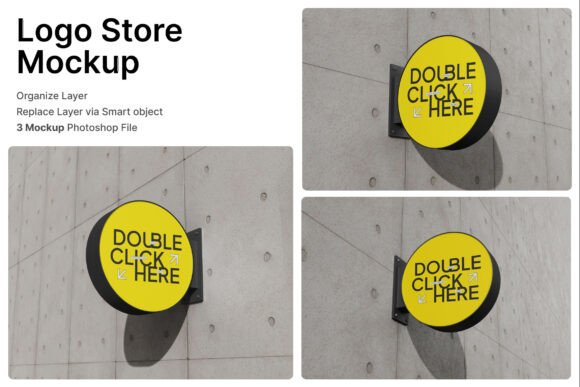
For entrepreneurs and designers looking to present a polished storefront identity, the Logo Store 3D Mockup offers a powerful solution. Whether you're branding a new café, boutique, or urban retail space, this mockup set helps visualize how signage and logos will appear in real-world settings. With its high-resolution output and versatile display options—including round hanging signs, wall-mounted installations, and angled outdoor views—it’s ideal for anyone aiming to communicate a strong brand presence before any physical installation begins.
Understanding the Logo Store 3D Mockup
The Logo Store 3D Mockup is a digital toolkit designed to help users preview commercial signage in a realistic environment. It includes three PSD files, each tailored for different presentation formats: hanging signs, wall-mounted logos, and outdoor storefront displays. Using smart object layers, users can easily insert their logo designs and instantly see how they’d look in a professional setting. The package also includes a PDF help guide and is delivered at a resolution of 4000 x 3000 pixels, making it suitable for both digital presentations and print use.
Common Mistakes When Using Logo Store 3D Mockup
While the Logo Store 3D Mockup is a valuable tool, there are several common pitfalls that users—especially beginners—often encounter. Recognizing and avoiding these can significantly improve the final outcome and save time and effort.
1. Overlooking Image Quality and Compatibility
One of the most frequent mistakes is not checking the resolution or format of the logo being inserted into the smart object layers. If the uploaded design is low resolution or improperly scaled, the final mockup will appear blurry or distorted, undermining the professional look the tool is meant to achieve.
Solution: Always use high-resolution logos (at least 300 dpi) and ensure they are in the correct file format, preferably vector-based (like SVG or EPS) for scalability. This ensures that when you double-click the smart object and place your design, it integrates cleanly without pixelation.
2. Misjudging the Display Context
Another oversight occurs when users apply the mockup without considering the intended physical environment. For example, a logo that looks great on a white wall in a boutique might not stand out on a busy urban storefront with surrounding signage and traffic.
Solution: Choose the appropriate mockup based on the actual installation setting. Use the outdoor presentation angle for street-facing signs and the wall-mounted version for interior branding. This helps clients or stakeholders better visualize the final appearance in context.
3. Assuming Stock Images Are Included
Many users mistakenly believe that the background images used in the mockups—such as cityscapes or storefront scenes—are included in the package. However, the product description clearly states that all image stock used in the examples is not included.
Solution: If you need to customize the background or integrate the logo into a specific scene, be prepared to source your own high-quality images or use royalty-free stock platforms. This prevents delays and ensures the final presentation is cohesive and relevant to your project.
4. Ignoring the Help Guide
Although the Logo Store 3D Mockup is user-friendly, skipping the included PDF help guide can lead to confusion, especially for first-time users unfamiliar with smart object layers or PSD file structure.
Solution: Take a few minutes to read through the guide before diving in. It walks you through the basic steps of inserting your logo, adjusting layers, and exporting the final image. This small step can prevent frustration and ensure smoother workflow.
What to Check Before Using the Logo Store 3D Mockup
Before downloading or purchasing the Logo Store 3D Mockup, it's important to verify a few key points to ensure it meets your needs:
- Compatibility: Ensure the PSD files are compatible with your version of Adobe Photoshop.
- Usage Rights: Confirm that the mockup can be used for both personal and commercial purposes, especially if you're presenting to clients or using the visuals in marketing materials.
- File Size: Be aware of the large file size (4000 x 3000 pixels) and ensure you have sufficient storage and system performance to handle it.
- Customization Options: Check whether the mockup allows for color changes, background swaps, or lighting adjustments to better match your brand’s aesthetic.
Practical Tips for Getting the Most from Your Mockup
Here are a few additional tips to help you make the most of the Logo Store 3D Mockup:
- Test Multiple Versions: Create variations of your logo (different colors, fonts, or layouts) and place each into the mockup to see which one performs best visually.
- Use Layer Styles: Don’t be afraid to adjust shadows, gradients, or textures within the PSD to better match the real materials you plan to use (e.g., metal, wood, or acrylic).
- Export Smartly: When saving the final image, use “Save As” instead of “Export” in Photoshop to preserve layer integrity for future edits.
- Communicate Clearly: If you're presenting the mockup to a client or team, annotate the image with notes explaining materials, dimensions, and placement ideas.
Conclusion: A Smart Investment for Visual Branding
The Logo Store 3D Mockup is more than just a design tool—it's a strategic asset for anyone involved in storefront branding, business identity, or commercial signage. By avoiding common missteps and understanding how to use the tool effectively, you can create compelling visuals that not only impress clients but also streamline the decision-making process. Whether you're a seasoned designer or a small business owner looking to refine your brand presence, this mockup set offers a practical and professional way to bring your vision to life.